Labels

Showing posts with label Blogger Tips. Show all posts

Monday, March 23, 2015

How do I use Custom domain in my Blogger account

In order to set your domain to your Blogger account, you need to take several simple steps:
 *** Set your domain within your Blogger account.
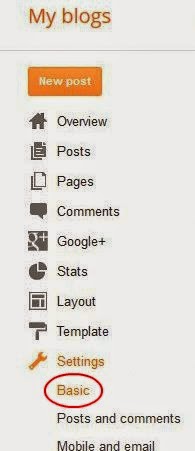
Once you login to your Blogger account you need to click on Settings tab and choose Basic. 


http://easyblogstrick.blogspot.com/ 


 ***Then you will need to click on Add a custom domain button under Blog

Wednesday, February 12, 2014

High Paying Keywords for Google Adsense-2015

If you are an Adsense Publisher, you always want to increase your earning through clicks. Sometimes it happens that you have good CTR, I mean you are getting a good number clicks from Adsense but your estimated earning is low. For example, you gave got 40 clicks and your estimated earning was $0.77! It’s really an unexpected earning.
You aren’t responsible for this low earning. Actually Low CPC (Cost Per Click) is responsible for it. You might have noticed that Adsense shows Ads according to post contents. Specifically we can say that Ads are related with post’s keywords. CPC is related with these keywords.
Google won’t pay you an average rate for clicks. Sometimes you will earn $3 for a click where sometimes they won’t pay you $3 for 50 clicks. Here is the point. It depends on the Ads that people clicked. If people clicked on a high paying ad then you’ll get a good payment. As I said Ads are showing according to your content’s keywords, if you have high paying keywords in your post you will get high CPC.

Tuesday, February 11, 2014

100% Free SEO Auto Keyword Generator Tool v3.1


Using the right keywords on your website and in your content is absolutely critical to being properly indexed by search engines.

Without the right keywords, your clients and customers will go to your competitor's websites instead. Don't be pushed below the fold in your SERPS. Rise above! SEO is what we do!

Thursday, February 6, 2014

How To Add iframe in your blog

You may want to set your iframe up like this, but if the website you are using the iframe on is larger than your site in width or height you will need scrolling on or open the iframe just as large as the website contained in the iframe:

How to Install Windows 7/8 Bootable External Hard Drive

Make a Bootable External Hard Drive and  Install Windows 7/8

Step 1: Format the Drive
Just place the flash drive in the USB port of your computer. Open command prompt (cmd). You can do that by pressing WINKEY+R, right click on the listed file and click on “Run as administrator“.
Enter the following commands in the same order as I did here:
diskpart
list disk
select disk z (where z is the number corresponding for your USB disk. You have to replace it with the corresponding letter from your own system).
clean
create partition primary
active
format fs=fat32 quick
assign
exit
Diskpart Bootable USB
Please be careful using the select command (so you don’t select and format your hard disk instead)

Wednesday, February 5, 2014

Download the Facebook Auto Liker Bot-2015


The Facebook auto liker bot allows you to get hundred of likes on your statuses, pictures, and pages within a matter of minutes.  All you have to do is enter in the address of whatever it is you want liked and the auto liker program will take care of the rest.  Now you can impress your friends with the ridiculous amount of likes you'll be getting with the Facebook auto liker bot!

Tuesday, January 28, 2014

How To Add META TAGS to Blogger(blogspot) blogs

Adding meta tags you can get get more traffic from search engines like Google,Yahoo,Bing,etc. Especially the meta description is the most important one.
Meta tags are the tags which describes your site and tells the search engines what your site is all about. Adding meta tags is an important factor in SEO.(Search Engine Optimization).Meta tags allows search engines to index your web pages more accurately. In other words,Meta tags communicate with the search engines and tells more information about your site and make it index correctly and accurately.
We must add two main meta tags to the head section of the template.One is the Meta description which describes your site and another one is Meta Keywords which tells about your site keywords(what your site is all about)
Tutorial updated : Jan 4, 2013
Here is how to add meta tags to your blogger(blogspot) blog:
1.Go to "Template" --> "Edit HTML" of your blog.

Tuesday, January 14, 2014

HOW TO SUBMIT BLOGGER/Wbsite SITEMAP TO GOOGLE WEBMASTER TOOLS


submit blogger sitemap to Google Webmaster Tools
Below are some easy steps you have to go through in terms to submit
your blogspot blog sitemap.

Sunday, January 12, 2014

Get More Traffice-List of High Page Rank (PR) Directory Submission Sites

Page Rank (PR) is a vital thing for a site to get higher appearance in Google search engine. Page Rank (PR) ranges from 1 to 10. High PR value denotes the site having maximum possibility to appear at first page of Search engine. Directory submission is one of the most important SEO tips for blogger or blogspot. When a site submitted to a blog directory it opens a window for the blog to attract more visitors to the blog. Creating backlinks is also a good technique to increase your traffic but sometimes it is not easy and time consuming. But once if you submit your blog to the directories, there is no need to submit your site further.

List of High Page Rank (PR) Directory Submission Sites

There are many blog or website directories which have different Page Ranks. High Page Rank directories give more restrictions. Here I am going to give a list where you can submit your site for free and easily.

Thursday, January 9, 2014

How Can You Advertise Here 125x125 Ad Banner Widget For Blogger

Today we provide you Advertise Here 125x125 Ad Banner Widget For Blogger/BlogSpot Blogs to earn more money from your blog with advertising space on your blog. Most of blogger used buysellads to advertise on their blog but buysellads need 100000 page views per month so you can manage your own 125X125 advertising on your blog. You can also add your affiliated 125x125 banner here to earn more revenue via affiliated advertising. If you have very good traffic on your blog than you have very high chance to get sponsors for your blog. If you need to add advertise here block like our website on your sidebar than we are providing you full code to add 125x125 block on your website.
Advertise Here 125x125 Ad Banner Widget For Blogger

How to Add Advertise Here 125x125 Ad Banner Widget For Blogger

Please follow below steps to add Advertise Here 125x125 Ad Banner Widget For Blogger:

How Can You Turn Off or Disable RSS Feeds in Blogger

How to Turn Off or Disable RSS Feeds in Blogger Blog who want to turning off their rss feeds of blogger blog. If you want to protect your content from copy and don't want to send notification of email about your new post to protect copy of your content than you can turn off or disable rss feeds of your blogger blog. You can disable RSS feeds or change Rss feed address to new address. In this article we will show step by step guide of How to Turn Off or Disable RSS Feeds in Blogger.

Turn Off or Disable RSS Feeds in Blogger

How to Turn Off or Disable RSS Feeds in Blogger

Please follow below steps to Turn Off or Disable RSS Feeds in Blogger:

Step 1

Login into Blogger Account. After Login go to your blogger dashboard and select your blog which you want to turn off or disable Rss Feeds Like as below picture.

How Can You customize AddThis on Blogger

If you plan to use or are using the AddThis widget on Blogger, you may find that you cannot easily control where to make your AddThis share buttons appear.
When installing AddThis for Blogger, normally you would use its Blogger widget. I find this too bulky as it uses javascript to parse your template to render the buttons. Sure you can modify the script so that you can position your buttons elsewhere but I don't find that solution flexible enough.
Instead of using the Blogger widget, I will show you how to use the AddThis website code on your Blogger template.
In your AddThis account (sign up if you haven't got one), grab the code for the buttons.
Instead of selecting Blogger in the Get AddThis for section, choose A Website
Configure the style and options as you want it then copy the code generated.

How Can You use Blogger labels as navigation in your blog

Labels in Blogger, if used correctly, are a great way of categorizing your posts. So now I will show you how to use them as navigation in your blog.
First thing is to select the labels you would like to use as your page navigation.
The URL of the labels come in the format of:
http://[BLOGNAME].blogspot.com/search/label/[LABEL]
So if you are to list your labels, you would use:
<ul>
  <li><a href="http://[BLOGNAME].blogspot.com/search/label/[LABEL]">LABEL</a></li>
  <li><a href="http://[BLOGNAME].blogspot.com/search/label/[LABEL]">LABEL</a></li>
  <li><a href="http://[BLOGNAME].blogspot.com/search/label/[LABEL]">LABEL</a></li>
</ul>
BUT to make things flexible (should you suddenly change your blog name),
How Can You Remove Blogger Navigation Bar

At this time every blogger user want to know How to remove Blogger Navigation Bar from their blog. So no need to worry because this navigation bar can be removed using some changes in your CSS code. If you are using the default blogger templates then you noticed that a horizontal bar appearing at the top of your blog. This navigation bar helps to sign in into your account, publish new posts and customize your website directly with the help of this bar.

Remove Blogger Navigation Bar

There are two ways to remove Blogger navigation bar from your blog

Tuesday, January 7, 2014

How Can You add, delete and edit labels in Blogger

In this post, I will show how you can add, delete and update labels for multiple posts in Blogger.
Apparently, there is no quicker way to do this yet so here it goes.
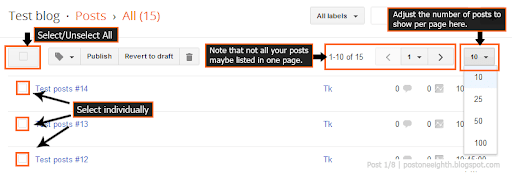
Before we begin, take note that not all your posts may be visible so you might have to adjust the list size as shown in the image below. If you can't fit all the posts into a single page, you will have to repeat the steps until you updated all posts.
Adjust the number of posts list in one page.Adjust the number of posts displayed in the first page.