Labels

Showing posts with label Blogger Tricks. Show all posts

Monday, March 23, 2015

How to Remove a Custom Domain From Blogger

We see a number of questions by users in the Blogger Support Forums about how do they remove a Custom Domain that they had setup for their blog.

It's very easy to switch back to your old blogspot address.

Old Interface
If you are still using the Old Interface, log onto your blog and go to the Settings, Publishing page.

Then click on the Switch to blogspot.com link.


New Interface

Wednesday, February 12, 2014

High Paying Keywords for Google Adsense-2015

If you are an Adsense Publisher, you always want to increase your earning through clicks. Sometimes it happens that you have good CTR, I mean you are getting a good number clicks from Adsense but your estimated earning is low. For example, you gave got 40 clicks and your estimated earning was $0.77! It’s really an unexpected earning.
You aren’t responsible for this low earning. Actually Low CPC (Cost Per Click) is responsible for it. You might have noticed that Adsense shows Ads according to post contents. Specifically we can say that Ads are related with post’s keywords. CPC is related with these keywords.
Google won’t pay you an average rate for clicks. Sometimes you will earn $3 for a click where sometimes they won’t pay you $3 for 50 clicks. Here is the point. It depends on the Ads that people clicked. If people clicked on a high paying ad then you’ll get a good payment. As I said Ads are showing according to your content’s keywords, if you have high paying keywords in your post you will get high CPC.

Tuesday, February 11, 2014

100% Free SEO Auto Keyword Generator Tool v3.1


Using the right keywords on your website and in your content is absolutely critical to being properly indexed by search engines.

Without the right keywords, your clients and customers will go to your competitor's websites instead. Don't be pushed below the fold in your SERPS. Rise above! SEO is what we do!

Thursday, February 6, 2014

How To Add iframe in your blog

You may want to set your iframe up like this, but if the website you are using the iframe on is larger than your site in width or height you will need scrolling on or open the iframe just as large as the website contained in the iframe:

Sunday, February 2, 2014

How to Add Numbered Pagination in Your Blogger Blog

Are you still wondering that how most of the famous blogs are using numbered pagination, instead of displaying older and new post buttons at the bottom of every Blogger archive page? Recently, one of our users asked us, How to add Numeric Pagination in Your Blogger Blog? We have been using number pagination on MyBloggerLab for quite a while now, and from our experience it gives you 10 times better pageviews than the older and newer post button. It is more user friendly, attractive, and SEO friendly. Most of the advance Blogger templates like Templateism comes with builtin Numeric pagination. In this article, we will show you how to add numbered pagination in your blogger blog?

What is Numbered Pagination?

Numbered pagination is a numeric navigation menu which is usually present at the bottom of the archive pages. It divides your whole blog into different pages, just like the pages of a book. Users can simply navigate through page 1, 2, 3, 4 and etc . We have attached a screenshot below, so that users can easily understand our words.

How to Add Numbered Pagination in Blogger?

The firest thing you need to do is to login into your Google account. Once logged in go to Blogger Dashboard >>

Friday, January 31, 2014

Add New Style Facebook Comments Box in Blogger Blogs-2014

Facebook has recently released many plugins for websites and blogs. Now Facebook developer's released "Facebook Comment Box". That's awesome to creating comment system on your blogger/blogspot blog. With facebook comments box, Your bloggers user able to comment on your blog posts and those post comment automatically share on their facebook comment wall.

Final Project: 
facebook blogger comment box
Just simply follow my instruction to add this.

How To Add-

Tuesday, January 28, 2014

How To Add META TAGS to Blogger(blogspot) blogs

Adding meta tags you can get get more traffic from search engines like Google,Yahoo,Bing,etc. Especially the meta description is the most important one.
Meta tags are the tags which describes your site and tells the search engines what your site is all about. Adding meta tags is an important factor in SEO.(Search Engine Optimization).Meta tags allows search engines to index your web pages more accurately. In other words,Meta tags communicate with the search engines and tells more information about your site and make it index correctly and accurately.
We must add two main meta tags to the head section of the template.One is the Meta description which describes your site and another one is Meta Keywords which tells about your site keywords(what your site is all about)
Tutorial updated : Jan 4, 2013
Here is how to add meta tags to your blogger(blogspot) blog:
1.Go to "Template" --> "Edit HTML" of your blog.

Tuesday, January 14, 2014

HOW TO SUBMIT BLOGGER/Wbsite SITEMAP TO GOOGLE WEBMASTER TOOLS


submit blogger sitemap to Google Webmaster Tools
Below are some easy steps you have to go through in terms to submit
your blogspot blog sitemap.

Sunday, January 12, 2014

Get More Traffice-List of High Page Rank (PR) Directory Submission Sites

Page Rank (PR) is a vital thing for a site to get higher appearance in Google search engine. Page Rank (PR) ranges from 1 to 10. High PR value denotes the site having maximum possibility to appear at first page of Search engine. Directory submission is one of the most important SEO tips for blogger or blogspot. When a site submitted to a blog directory it opens a window for the blog to attract more visitors to the blog. Creating backlinks is also a good technique to increase your traffic but sometimes it is not easy and time consuming. But once if you submit your blog to the directories, there is no need to submit your site further.

List of High Page Rank (PR) Directory Submission Sites

There are many blog or website directories which have different Page Ranks. High Page Rank directories give more restrictions. Here I am going to give a list where you can submit your site for free and easily.

Thursday, January 9, 2014

How Can You Simple Related Posts Widget For Blogger With Thumbnails

Here we provide Simple Related Posts Widget for Blogger with Thumbnails for your blog post. Related posts widget shows other posts in same category or label. With the help of related post widget you can increase your blog page views and attract your readers to give related posts for spend more time. It’s help to increase visitor time periods of your website. If you need this related post widget you need to create some changes in your Template.

Related Posts Widget

How to Add Related Posts Widget

You can easily add related posts widget with follow below steps:

How Can You Remove Blogger Threaded Comments

Most of Blogger want to remove threaded commenting system on their blog and search How To Remove Blogger Threaded Comments. Blogger Threaded commenting system allows a blog post reader to reply other blog post comments. If you don't need this on your blog then you can removed easily with us.

Remove Blogger Threaded Comments

Remove Blogger Threaded Comments

If you want to remove threaded comments from your blogger blog then follow below steps:

How Can You Remove Blogger Attribution Gadget

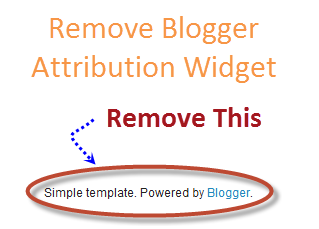
Most of blogger wants to Remove Blogger Attribution Gadget in their blog footer. Blogger Attribution gadget is show "Powered By Blogger" in the footer. You want to removed this but when you tried to remove this gadget you get noticed that this gadget is locked into your blog. You need to follow some steps to unlock it.
Blogger Attribution Gadget

Remove Blogger Attribution Gadget

We provide you step by step guide about how to Remove Blogger Attribution Gadget form your blogger footer. Please follow below steps to unlock Attribution gadget:

How Can You Add Featured Posts Slider Widget with Images for Blogger

Add Featured Posts Slider widget with images for Blogger which show your selected featured post on front page at blogger blog. Every blogger want to add featured post slider on their blog. Now it’s very easy to add featured post slider widget to your blogger blog.

Add Featured Posts Slider Widget with Images for Blogger

If you want to show some targeted post to all your readers then this widget help to show your post on home page. You can add your 4 post on this widget and it will show on your home page with hover effect.

Featured Posts Slider widget for Blogger

You can add Featured Posts Slider widget with images for Blogger with follow below steps:

Step 1

Log in into your blogger Dashboard and Go to Template then click on Edit HTML button as show in below picture.
Add Featured Posts Slider Widget with Images for Blogger

Step 2

Search below code with the help of CTRL + F.

How Can You Add Google Adsense Ads Below Post Title in Blogger

Adsense is the best earning money source for blogger so many blogger want to add Google adsense ads in their blog at below title to get high Click Through Rate (CTR). Every webmaster increases the ad revenue to get maximum output from Google adsense advertisement program. Most of websites prefer adding ads below post title because it is the best place to put adsense code to increase Click Through Rate (CTR). You can also check yourself which place works best for you. Today's we provide you tutorial about how to show Google Adsense code below post titles in blogger.
How to Add Google Adsense Ads Below Post Title in Blogger

How to Add Google Adsense At Below Post Title

We give you step by step guide to add Google adsense ad code below post title:

Create Google Adsense Ads

Step 1

Go to Google Adsense Account.

Step 2

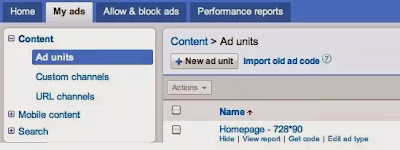
Go to My ads tab and create a new ad unit.

How to Add Google Adsense Ads Below Post Title in Blogger

Step 3

Create 300x250 Medium Rectangle or 336x280 Large rectangles for best results.

How Can You Add Page Navigation Widget For Blogger

How to Add Page Navigation Widget For Blogger

Follow below steps to How to Add Page Navigation Widget For Blogger:

Step 1

Log in into Blogger Dashboard

Step 2

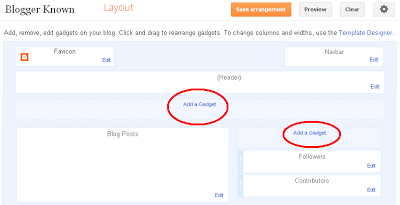
Go to Layout and click on Add a Gadget link as show in below picture.
Page Navigation Widget
Step 3   Select HTML/JavaScript from list as shown in below picture.